Microservices Part 2: Connect Your Services Safely
Part 2 of Microservices on Light Cloud. Let one API serve production and local development, change a shared secret with zero downtime, and fail fast when a service is down.



On this pageShowHide
To connect microservices safely on Light Cloud, keep every service address and secret in environment variables, allow each browser origin explicitly with CORS, rotate shared secrets in three saves (receiver accepts both, caller switches, receiver drops the old one), and put a timeout on every call between services. Each save redeploys only the service you changed, so none of this needs downtime.
This is Part 2 of the series. It continues from Part 1, where you deployed Bean There: a React shop front, a Node.js catalog-api, a Python orders-api and PostgreSQL. Here you make the connections between them production-ready.
What you will build
Three changes to the same running shop:
- Several allowed origins. The APIs answer both the live site and
http://localhost:5173, so you can run the frontend on your laptop against the deployed APIs. - Secret rotation without downtime. You replace the secret orders-api uses to call catalog-api while orders keep working.
- A timeout between services. If catalog-api does not answer within 5 seconds, orders-api says so clearly instead of hanging.
Live demo: main-web-examples.light-cloud.io. Source code: github.com/light-cloud-com/tutorial-microservices, tag part-2.
Before you start
- Bean There deployed from Part 1: web, catalog-api, orders-api and bean-there-db, all running.
- Your fork of
tutorial-microservices. - A terminal: macOS and Linux have curl and OpenSSL built in. On Windows, use PowerShell 7 (
winget install Microsoft.PowerShell); the Windows tabs usecurl.exe, which ships with Windows 10 and 11. - Git, to pull the Part 2 code into your fork.
Step 1: Get the Part 2 code
The Part 2 changes live in catalog-api and orders-api. Pull them into your fork.
- Open your fork on GitHub.
- Click Sync fork, then Update branch.
Or from a clone of your fork. You should see the pull fast-forward to the Part 2 commit, touching only the two APIs and the README, and the push end with the same commit range (output trimmed):
$ git remote add upstream https://github.com/light-cloud-com/tutorial-microservices.git
$ git pull upstream main
Updating 8023f1a..ddcbae0
Fast-forward
 README.md             | 36 +++++++++++++++---------------------
 catalog-api/server.js | 35 ++++++++++++++++++++++++++++-------
 orders-api/main.py    | 25 +++++++++++++++++--------
 3 files changed, 60 insertions(+), 36 deletions(-)
$ git push origin main
8023f1a..ddcbae0 main -> mainPS> git remote add upstream https://github.com/light-cloud-com/tutorial-microservices.git
PS> git pull upstream main
Updating 8023f1a..ddcbae0
Fast-forward
README.md | 36 +++++++++++++++---------------------
catalog-api/server.js | 35 ++++++++++++++++++++++++++++-------
orders-api/main.py | 25 +++++++++++++++++--------
3 files changed, 60 insertions(+), 36 deletions(-)
PS> git push origin main
8023f1a..ddcbae0 main -> mainThe push changes files in catalog-api/ and orders-api/ only. Light Cloud redeploys just those two. The web app stays on the commit it already runs, because nothing in web/ changed.
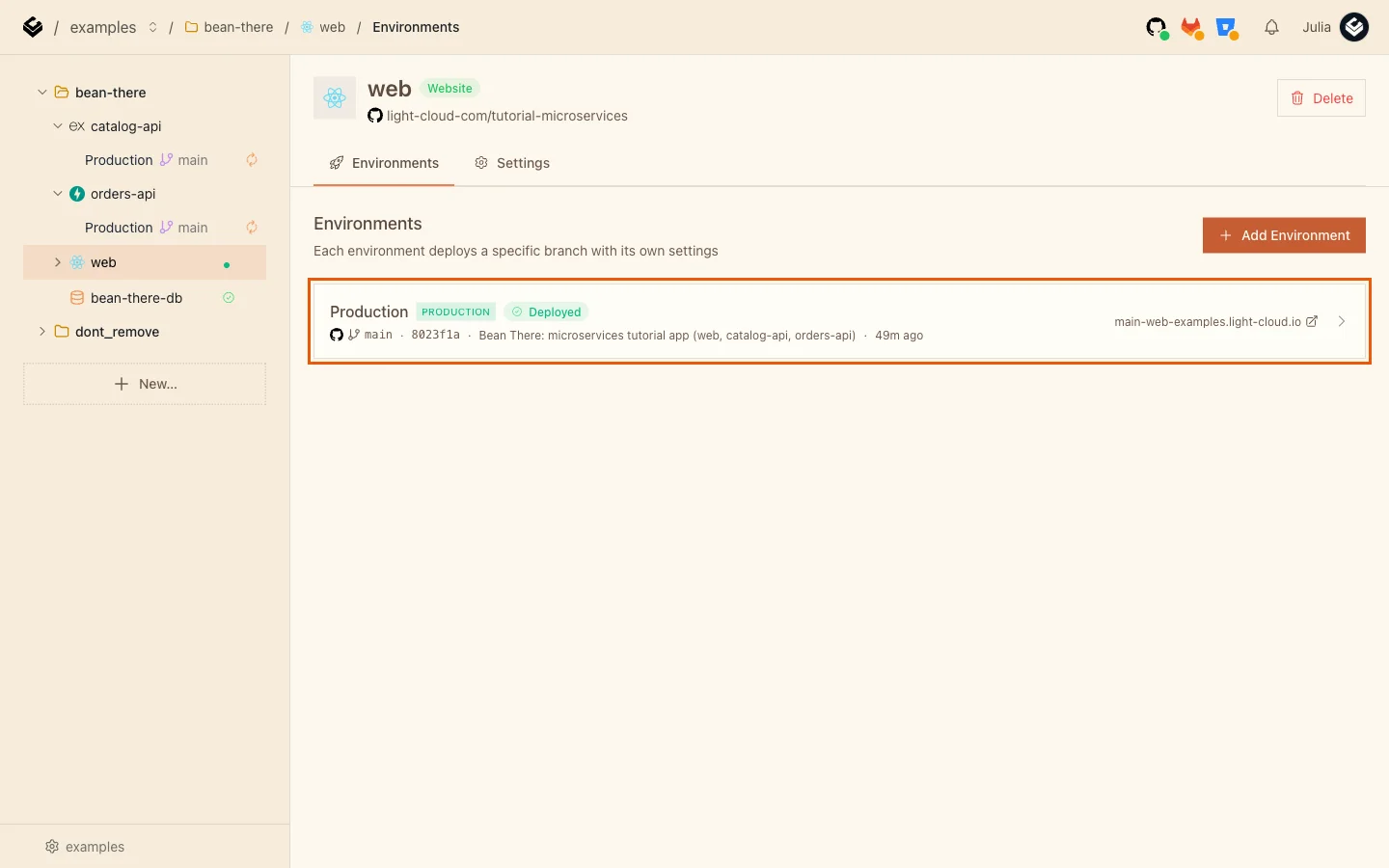
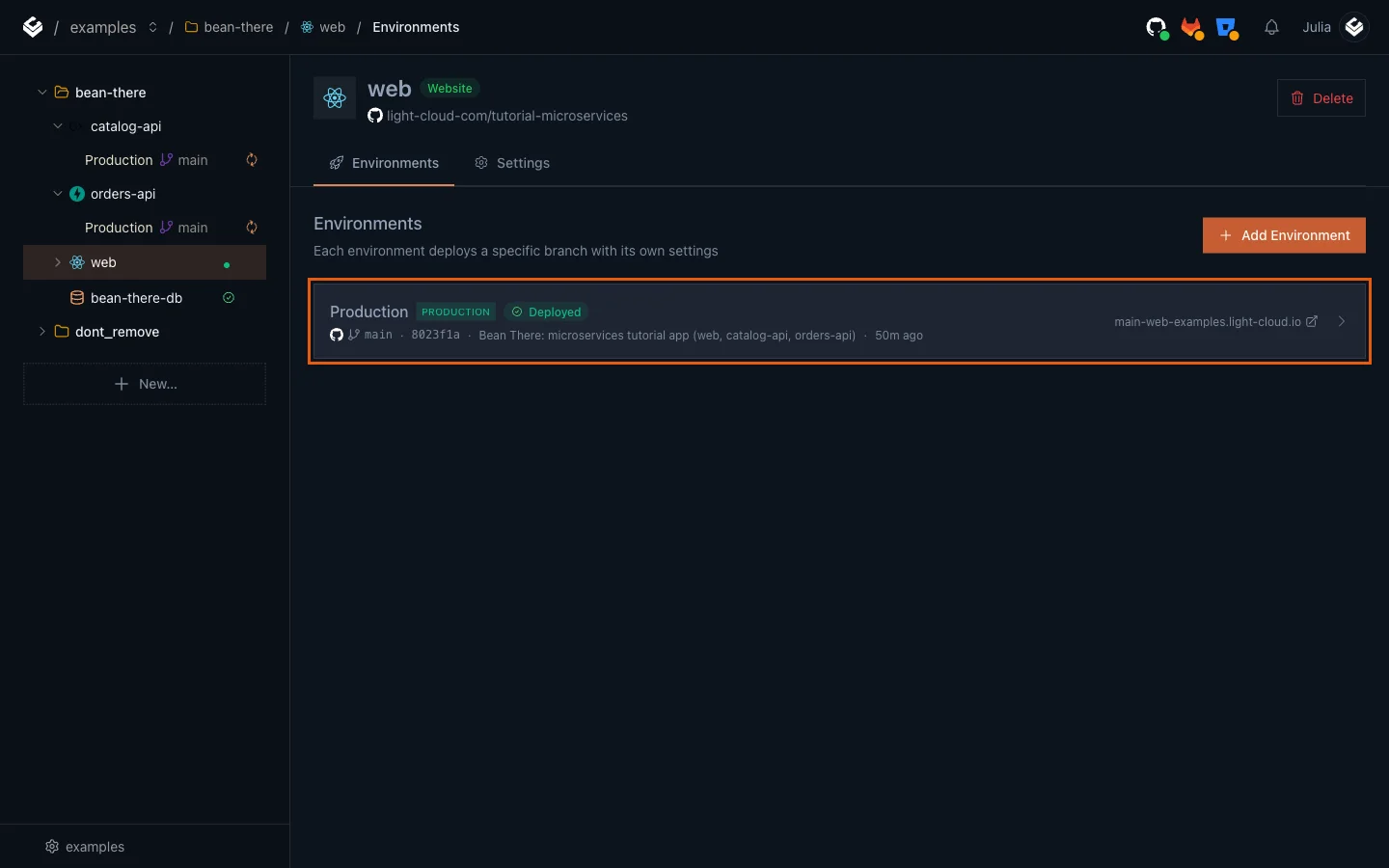
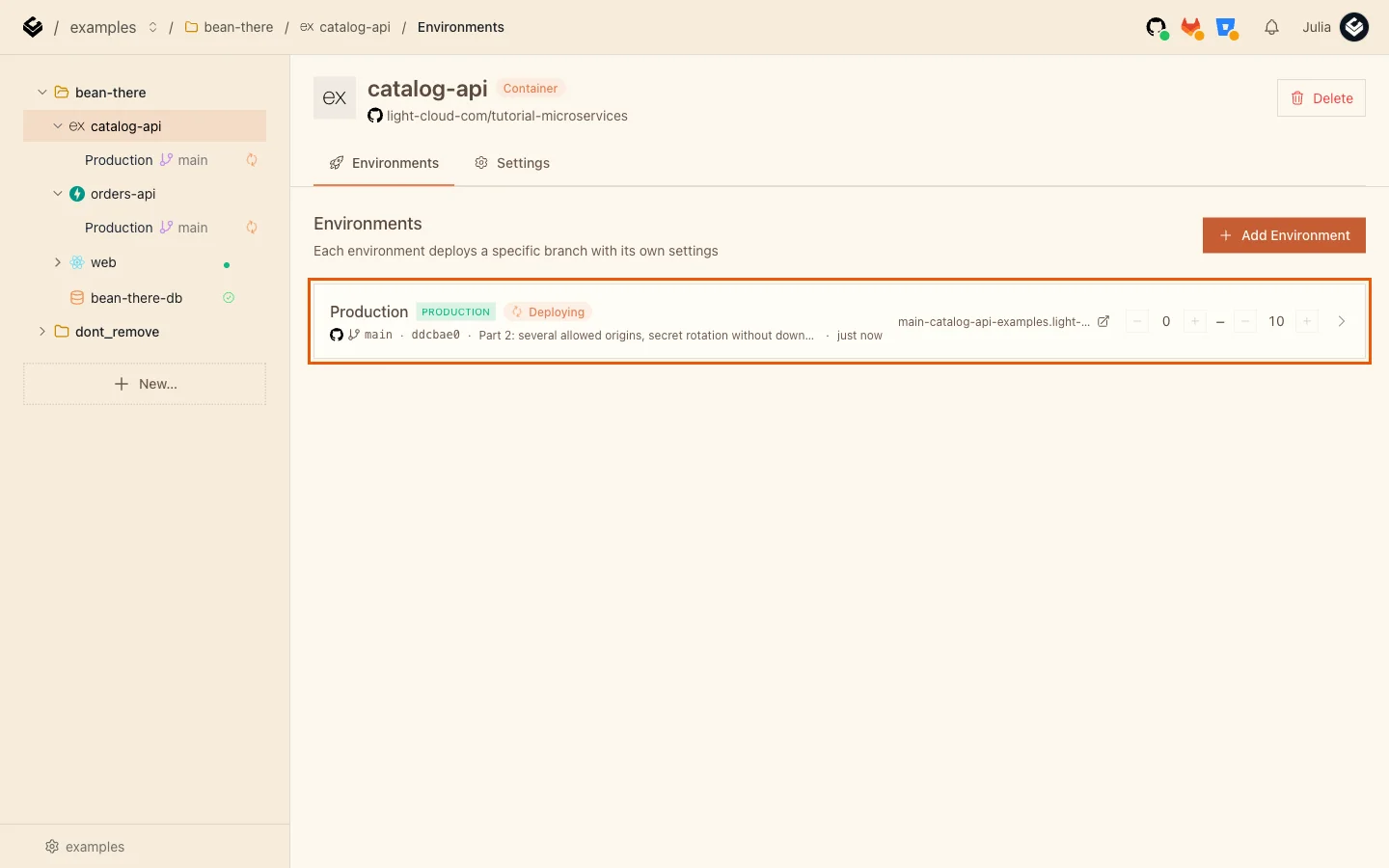
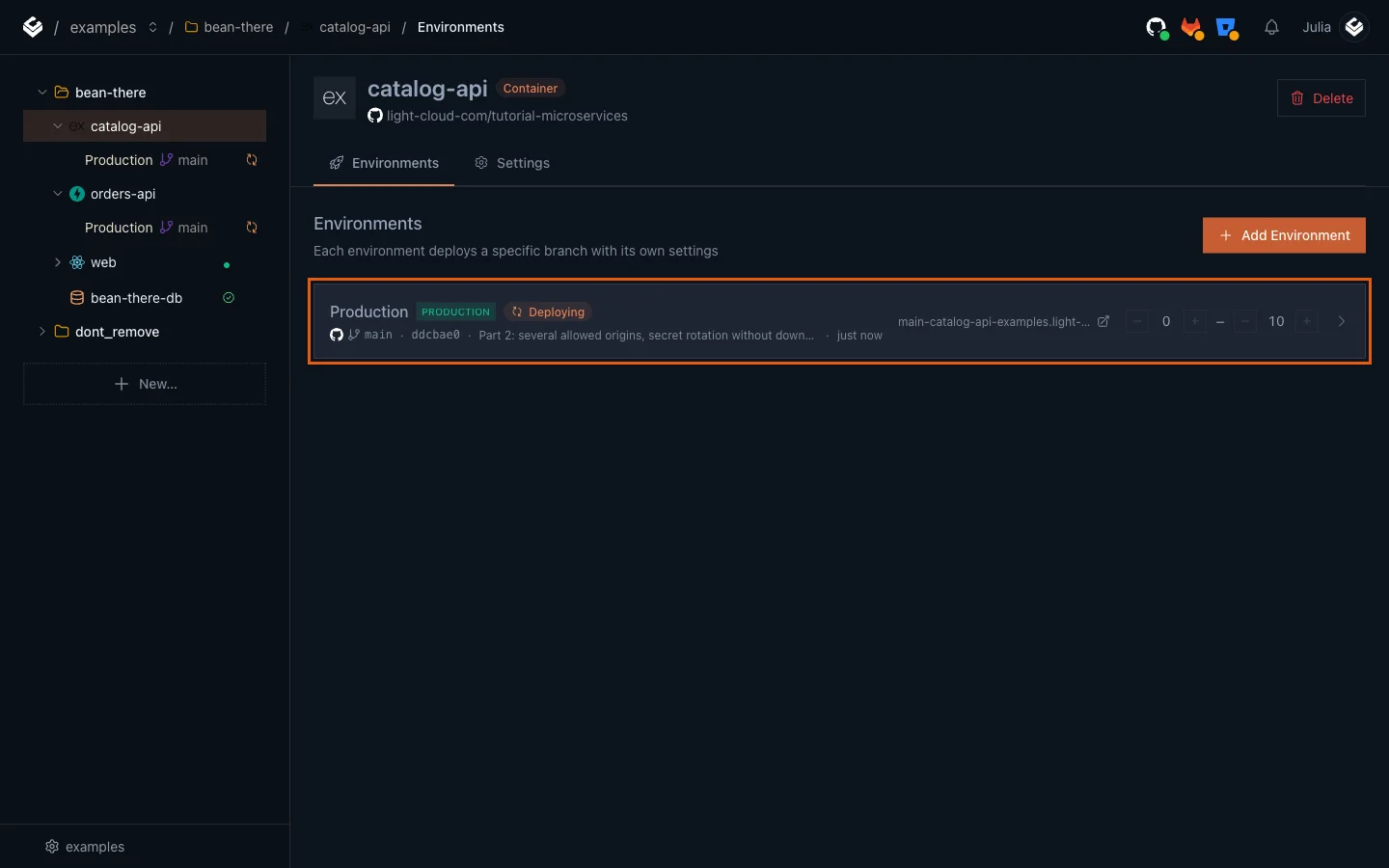
You should see catalog-api and orders-api deploying the new commit, and web unchanged. This is the monorepo rule from Part 1 at work: each app has a Root directory, and a push only redeploys the apps whose folder it touched.
Step 2: Allow more than one origin
A browser only lets a page read an API's answer if the API names that page's origin in its CORS header. Part 1 allowed one origin. Now WEB_ORIGIN can hold a comma-separated list. This is the new code in catalog-api:
// One or more browser origins allowed to call this API, comma-separated:
// WEB_ORIGIN=https://main-web-myteam.light-cloud.io,http://localhost:5173
const WEB_ORIGINS = (process.env.WEB_ORIGIN || "http://localhost:5173")
  .split(",")
  .map((origin) => origin.trim())
  .filter(Boolean);

app.use(cors({ origin: WEB_ORIGINS }));
orders-api does the same in Python:
WEB_ORIGINS = [o.strip() for o in os.environ.get("WEB_ORIGIN", "http://localhost:5173").split(",") if o.strip()]
app.add_middleware(CORSMiddleware, allow_origins=WEB_ORIGINS, allow_methods=["*"], allow_headers=["*"])
Add your laptop's address to both APIs:
- Open catalog-api, then Production, then the Settings tab.
- In Environment Variables, click Edit.
- Change
WEB_ORIGINto your web address andhttp://localhost:5173, separated by a comma and no spaces:
https://main-web-yourworkspace.light-cloud.io,http://localhost:5173
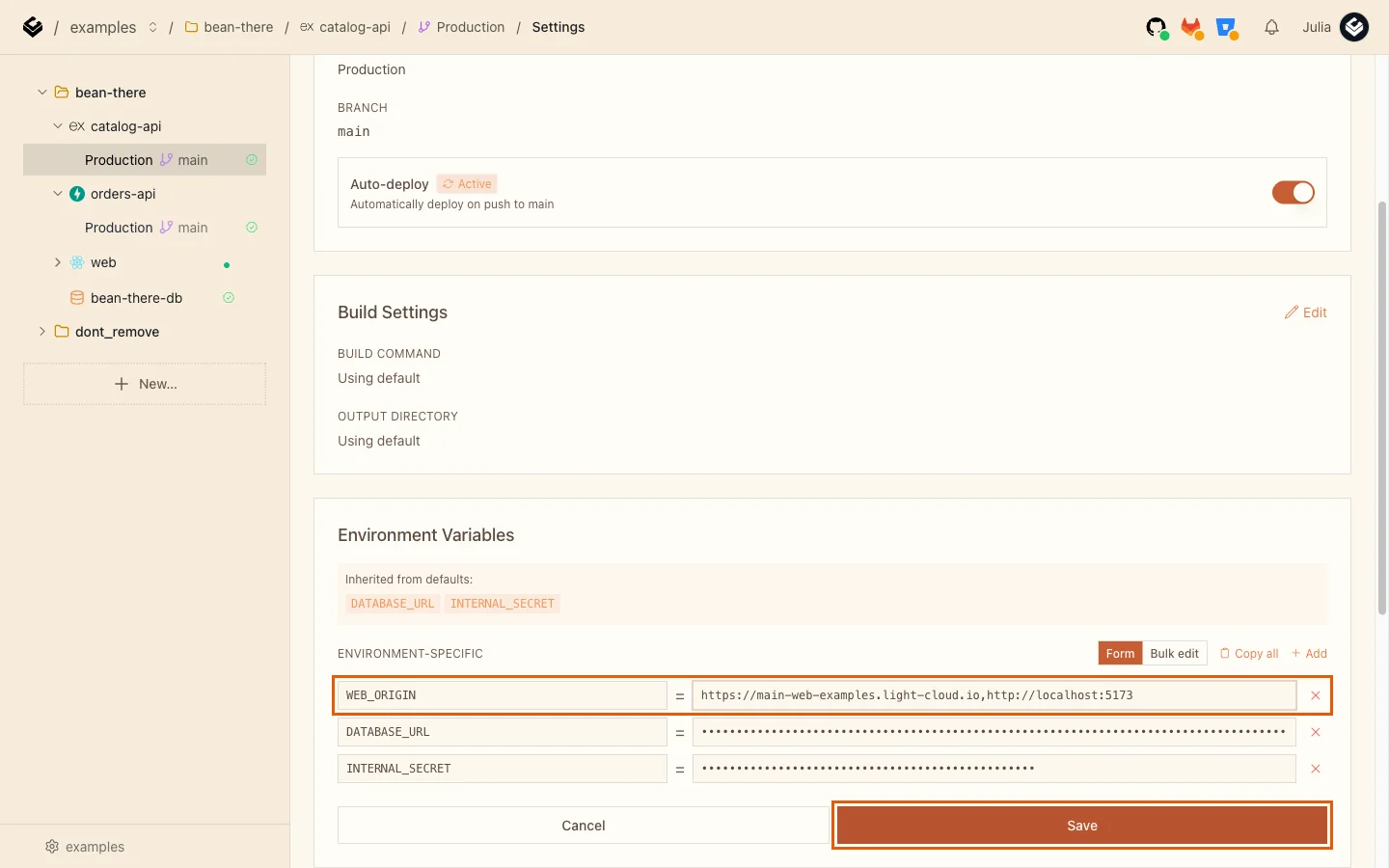
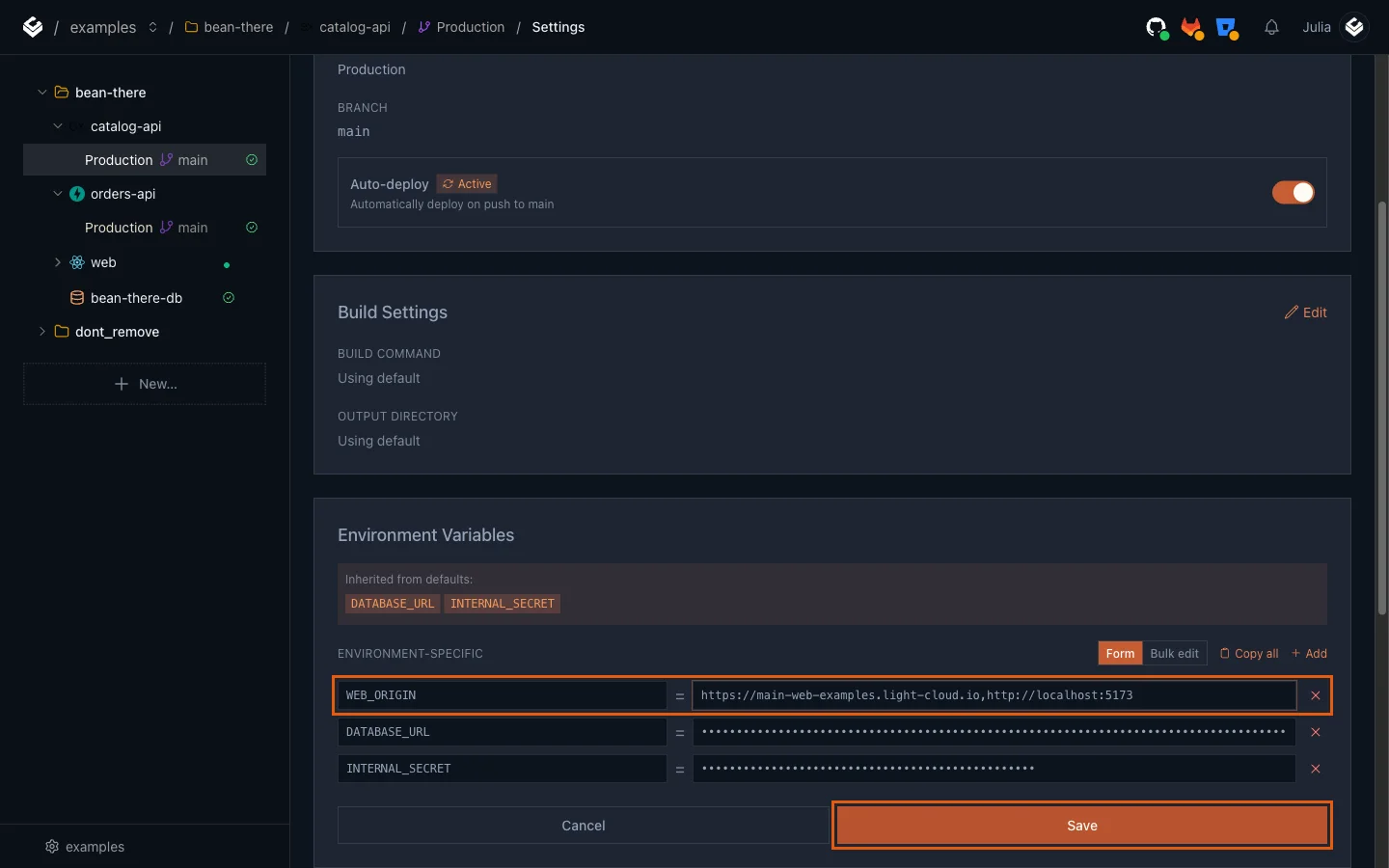
- Click Save. Repeat for orders-api.
Saving redeploys the service. After about a minute, ask the API as if you were the local frontend. You should see the origin echoed back:
$ curl -I -H "Origin: http://localhost:5173" https://main-catalog-api-yourworkspace.light-cloud.io/products
HTTP/2 200
date: Fri, 25 Sep 2026 19:04:59 GMT
content-type: application/json; charset=utf-8
content-length: 371
cf-ray: a40c4c243e9fe75e-WAW
cf-cache-status: DYNAMIC
access-control-allow-origin: http://localhost:5173PS> curl.exe -I -H "Origin: http://localhost:5173" https://main-catalog-api-yourworkspace.light-cloud.io/products
HTTP/2 200
date: Fri, 25 Sep 2026 19:04:59 GMT
content-type: application/json; charset=utf-8
content-length: 371
cf-ray: a40c4c243e9fe75e-WAW
cf-cache-status: DYNAMIC
access-control-allow-origin: http://localhost:5173-I shows only the headers, and -H pretends to be the local frontend. I cut the output after access-control-allow-origin, the line that matters. An origin that is not in the list gets no Access-Control-Allow-Origin header at all, so the browser blocks it. That is the behaviour you want: a list, never *, for an API that changes data.
Step 3: Rotate the shared secret without downtime
catalog-api refuses calls to /internal routes unless they carry the shared secret. If you change the secret on both services at the same moment, there is a window where one has the new value and the other the old one, and orders fail. The fix is to let catalog-api accept two secrets for a short time.
This is how catalog-api checks the header now:
// The current secret, plus the previous one while a rotation is in progress.
const INTERNAL_SECRET = process.env.INTERNAL_SECRET;
const INTERNAL_SECRET_PREVIOUS = process.env.INTERNAL_SECRET_PREVIOUS;

// Compares in constant time, so response timing does not leak the secret.
function sameSecret(expected, given) {
  if (!expected || !given) return false;
  const a = Buffer.from(expected);
  const b = Buffer.from(given);
  return a.length === b.length && timingSafeEqual(a, b);
}

function requireInternalSecret(req, res, next) {
  const given = req.get("x-internal-secret");
  if (sameSecret(INTERNAL_SECRET, given)) return next();
  if (sameSecret(INTERNAL_SECRET_PREVIOUS, given)) {
    log(req, "internal call used the previous secret");
    return next();
  }
  log(req, "rejected internal call");
  return res.status(401).json({ error: "Unauthorized" });
}
Make a new secret first. You should see one line of 48 random letters and digits; yours will be different. Keep it somewhere private for the next steps:
$ openssl rand -hex 24
cf91d1e26971527e2ec7362e9452f5abb4670e767ab1a0af# Run this in Git Bash, which comes with Git for Windows.
$ openssl rand -hex 24
cf91d1e26971527e2ec7362e9452f5abb4670e767ab1a0afA. catalog-api accepts both secrets
- Open catalog-api, Production, Settings, and click Edit under Environment Variables.
- Set
INTERNAL_SECRETto the new secret. - Click Add and create
INTERNAL_SECRET_PREVIOUSwith the old secret. - Click Save.
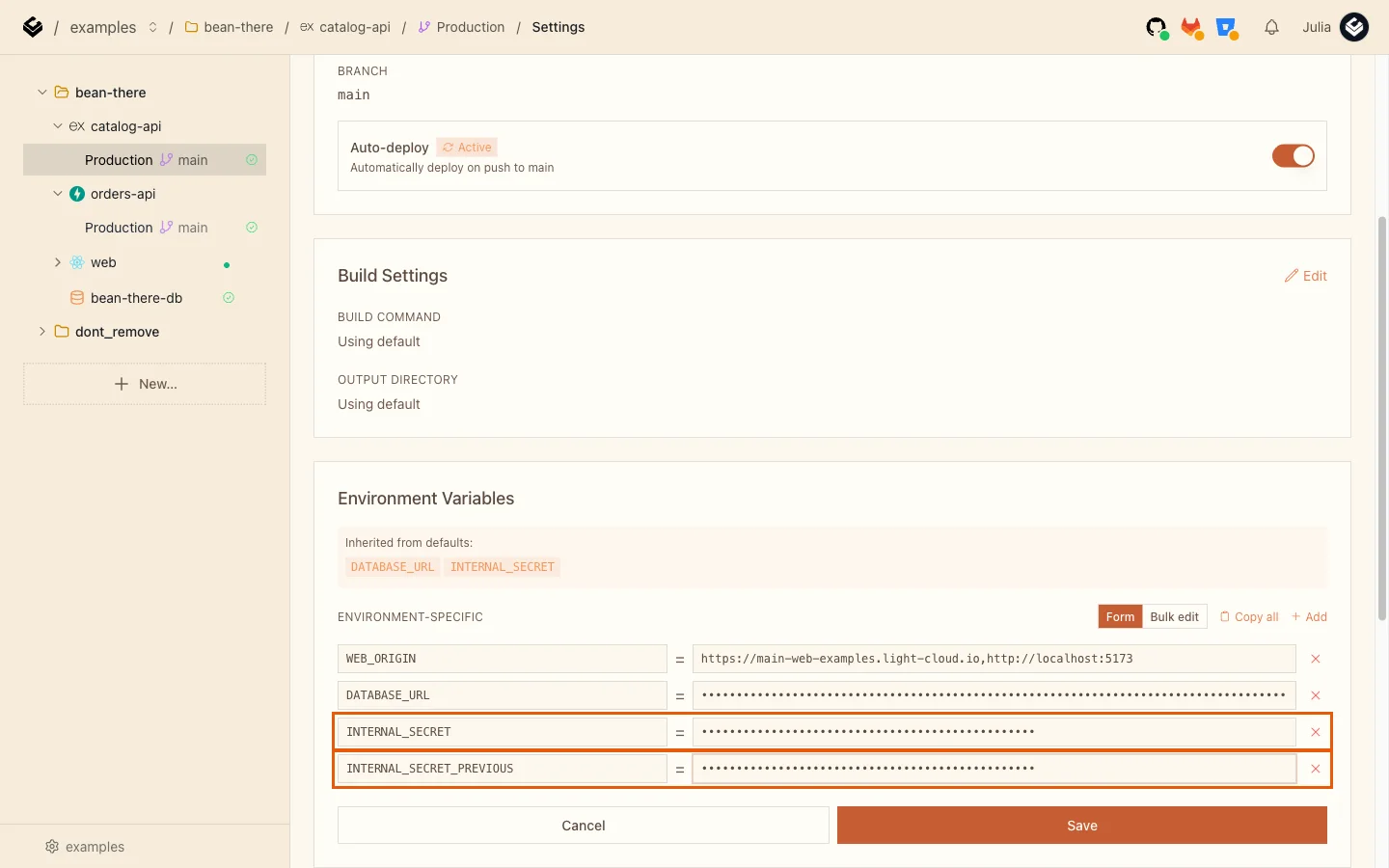
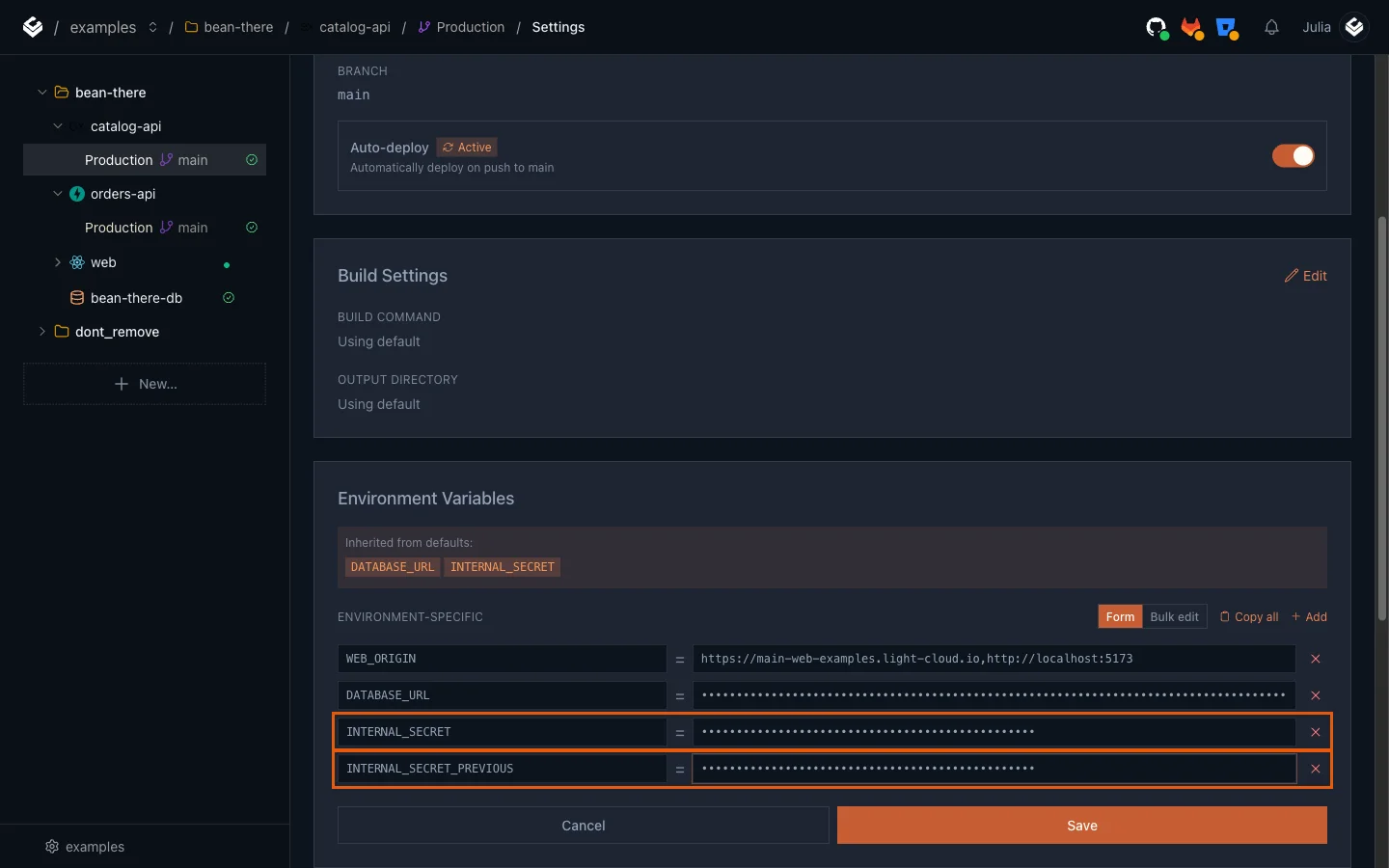
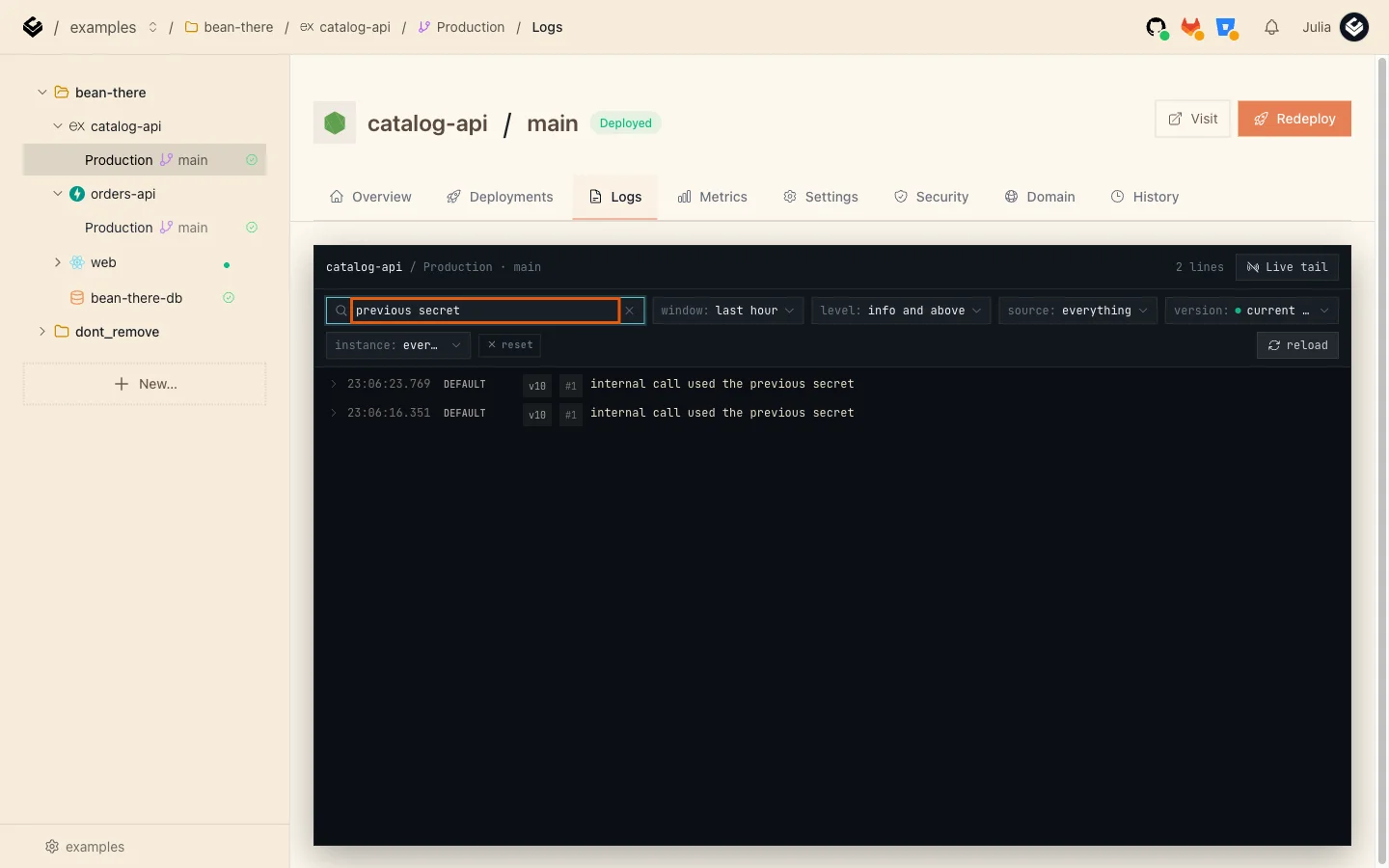
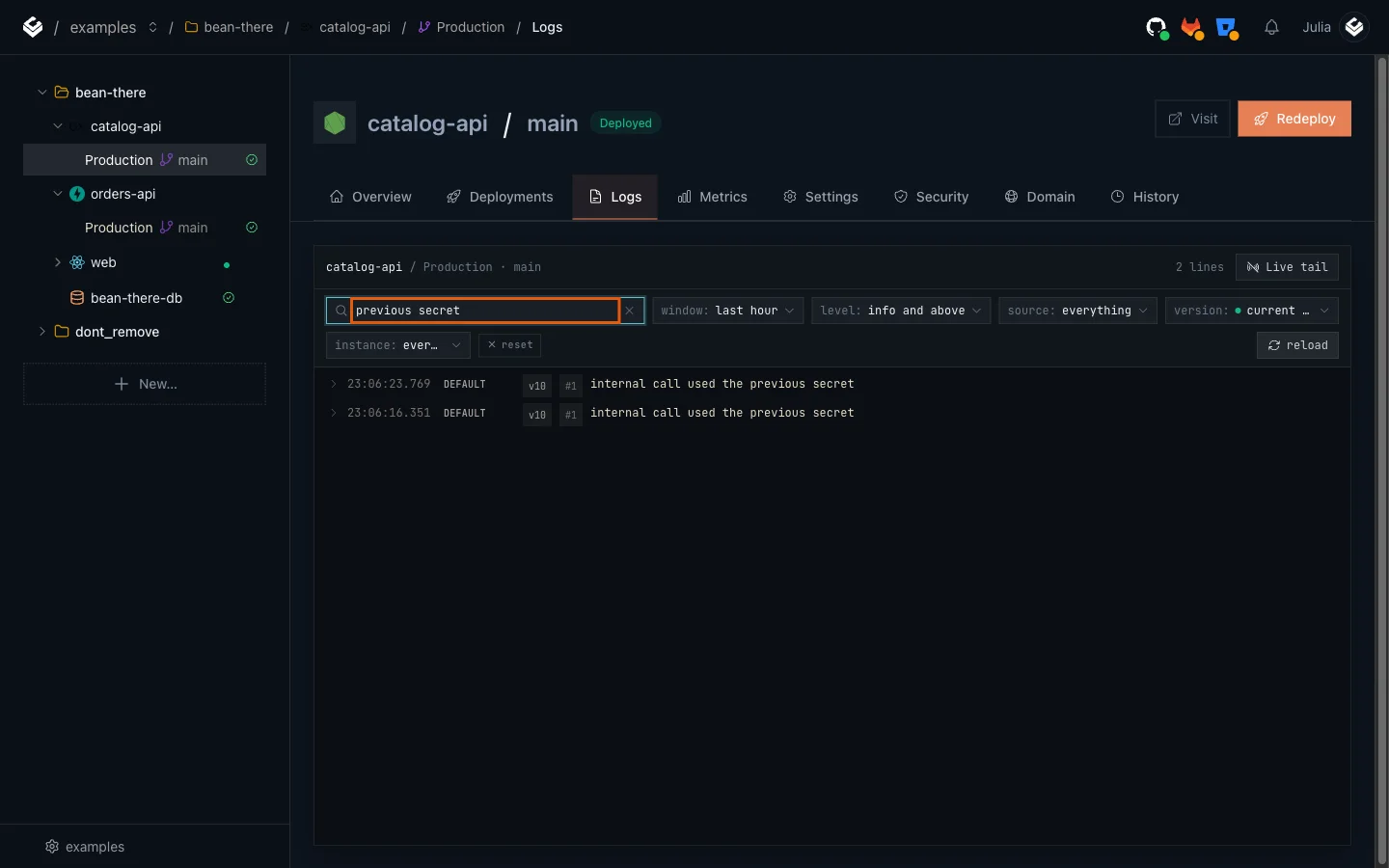
orders-api still sends the old secret, and orders keep working. Open catalog-api's Logs tab and search for previous secret: every internal call made with the old value is listed.
B. orders-api switches to the new secret
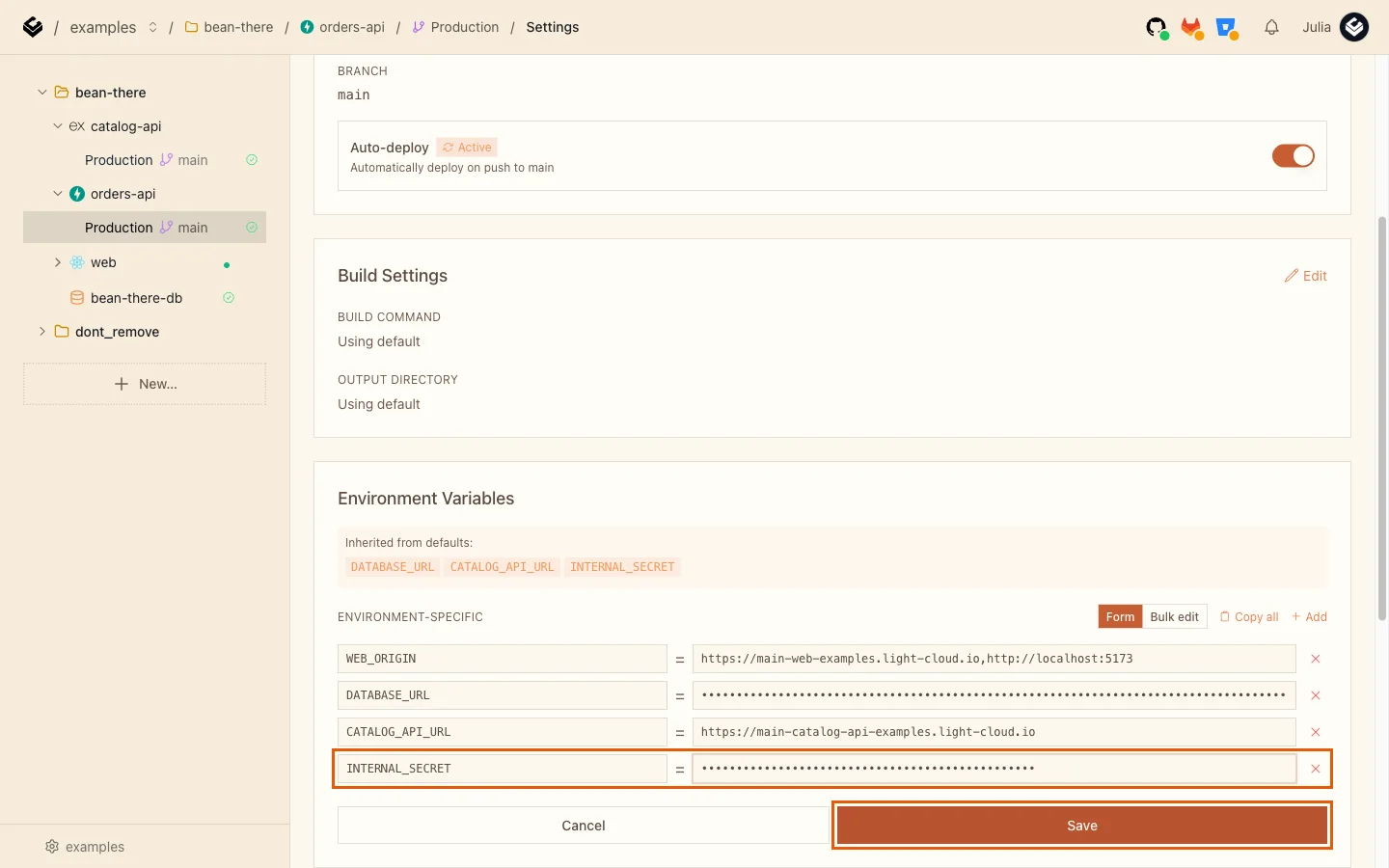
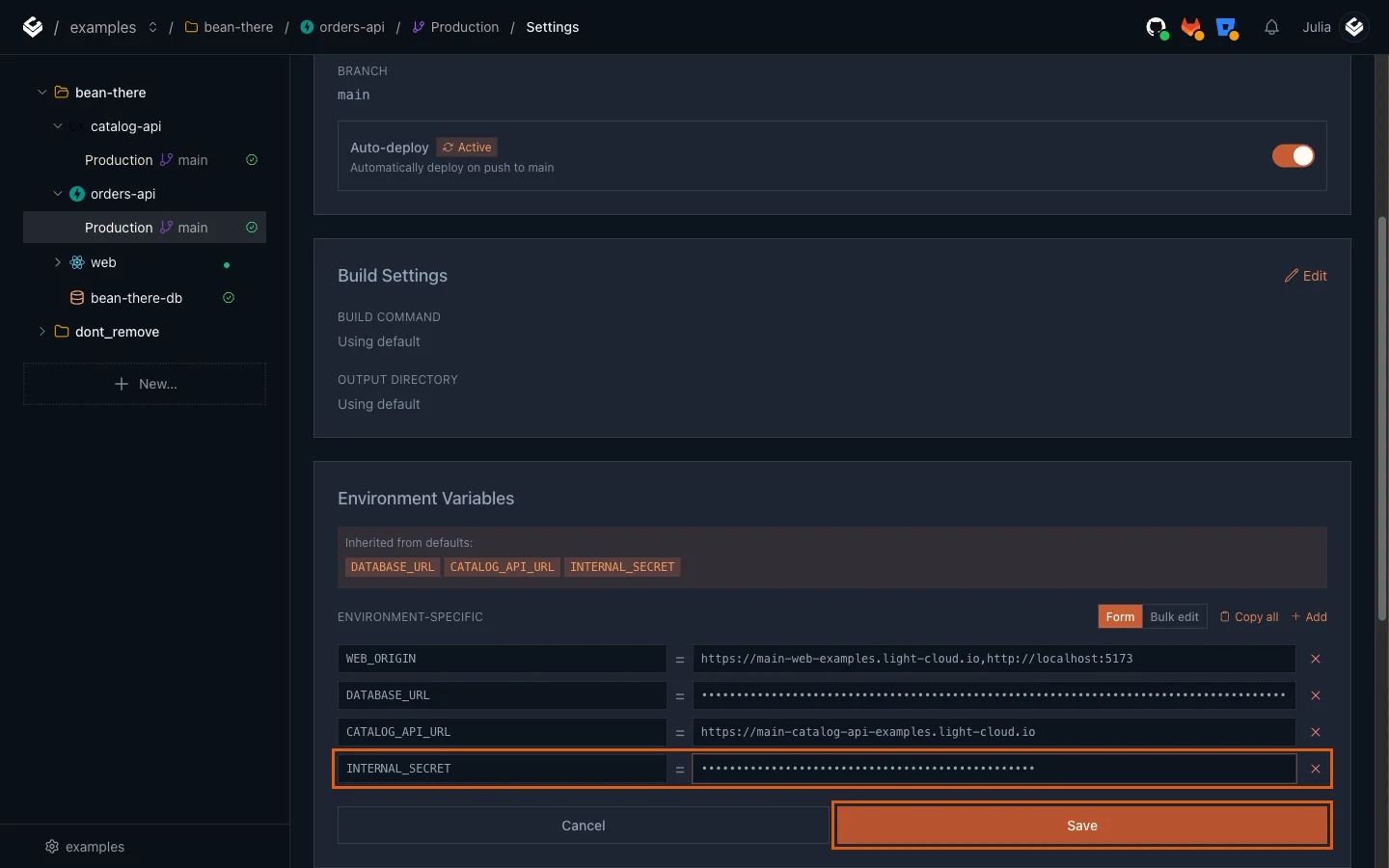
- Open orders-api, Production, Settings, and click Edit.
- Set
INTERNAL_SECRETto the new secret and click Save.
When orders-api has redeployed, place an order in the shop. Search catalog-api's logs for previous secret again. You should see no new lines: orders-api now uses the new secret.
C. catalog-api drops the old secret
- Back in catalog-api, Settings, click Edit.
- Click the x at the end of the
INTERNAL_SECRET_PREVIOUSrow.
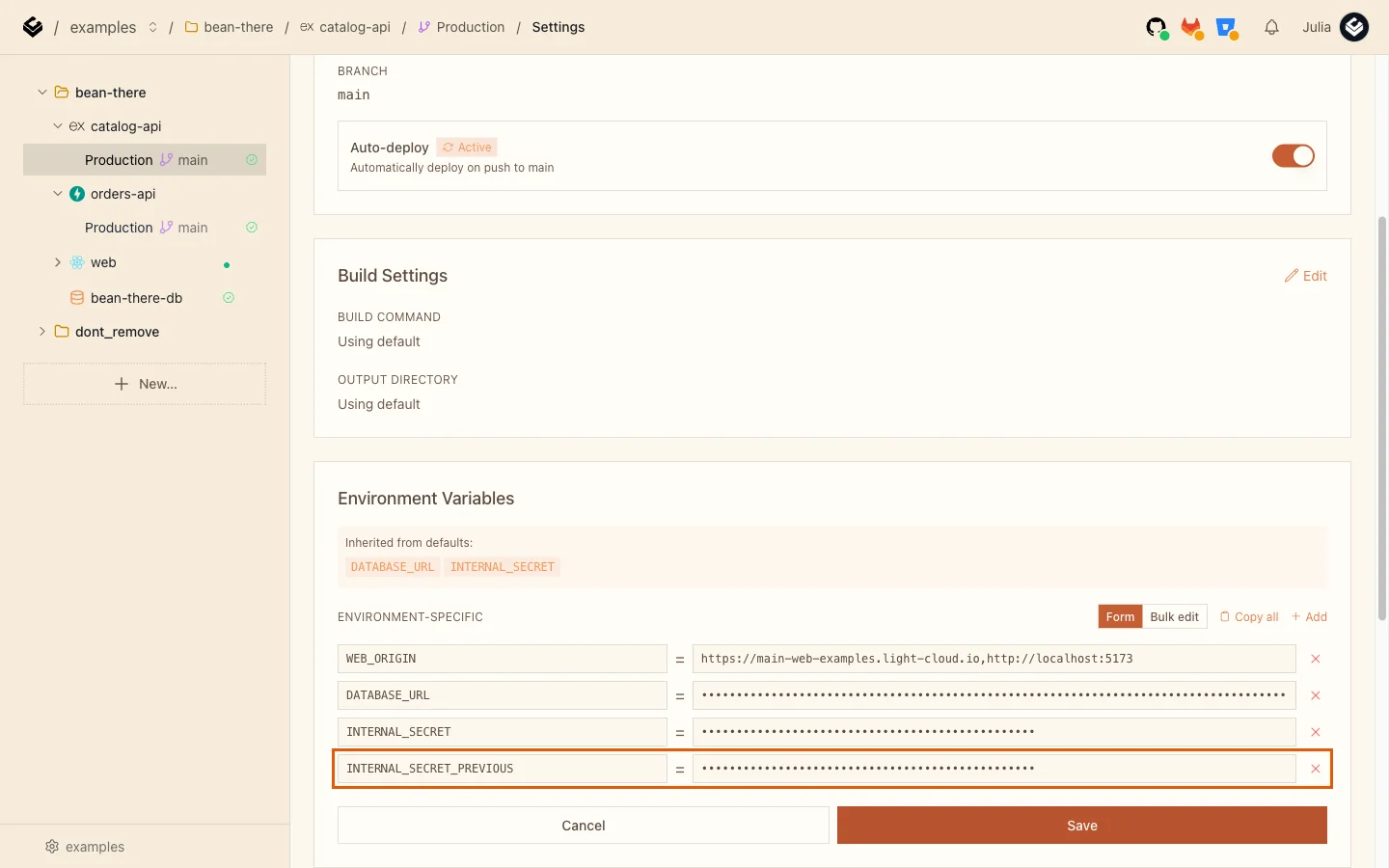
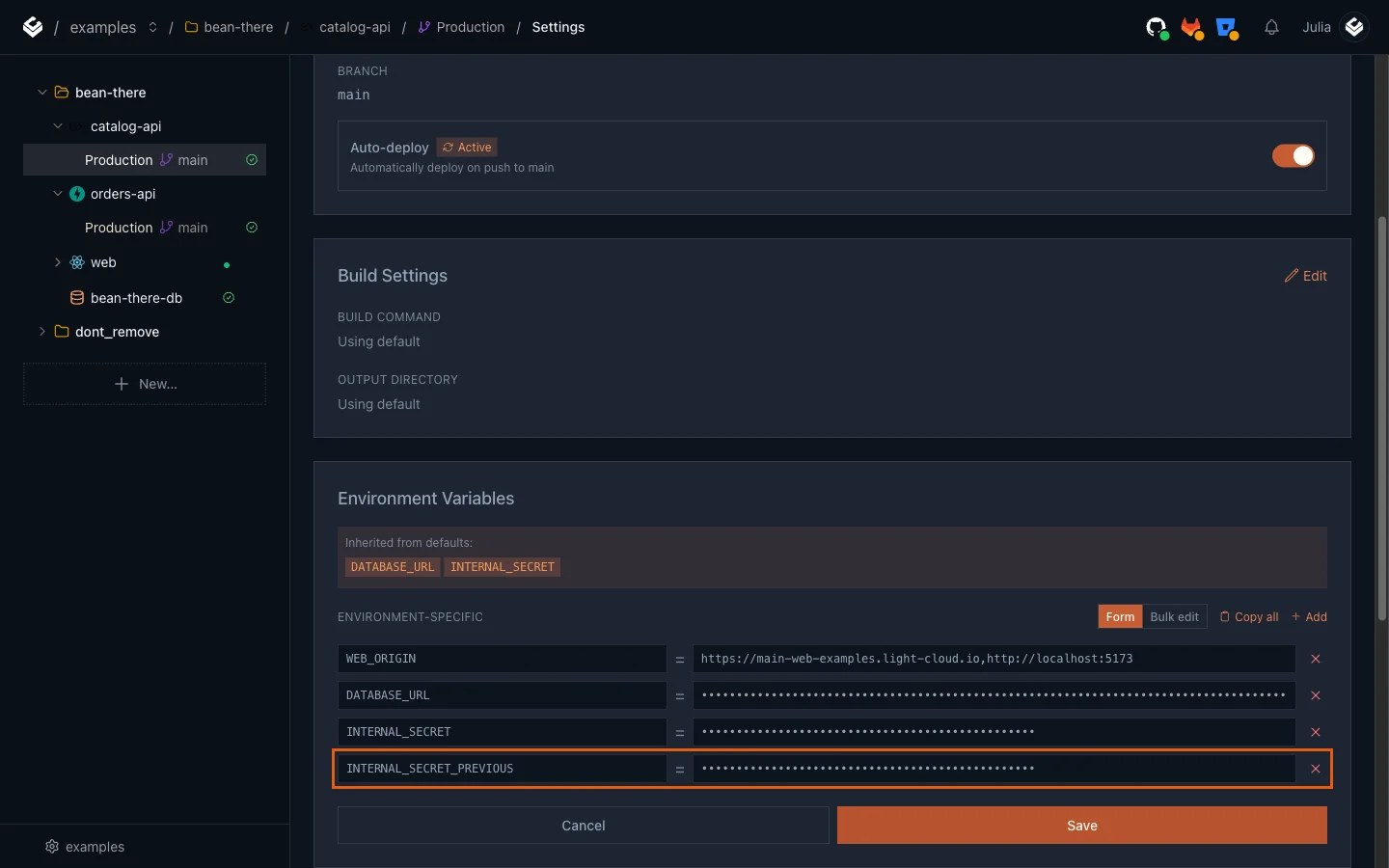
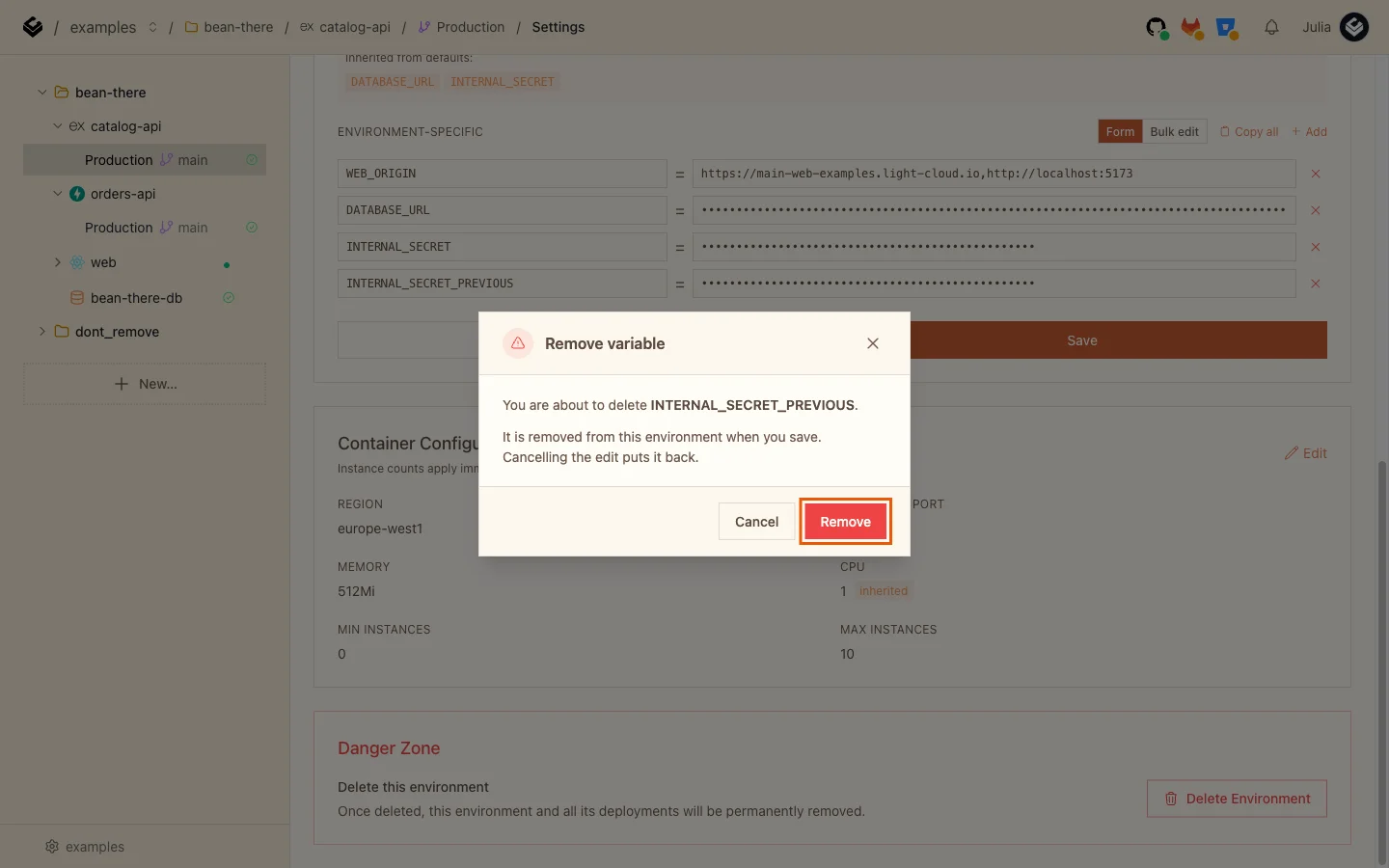
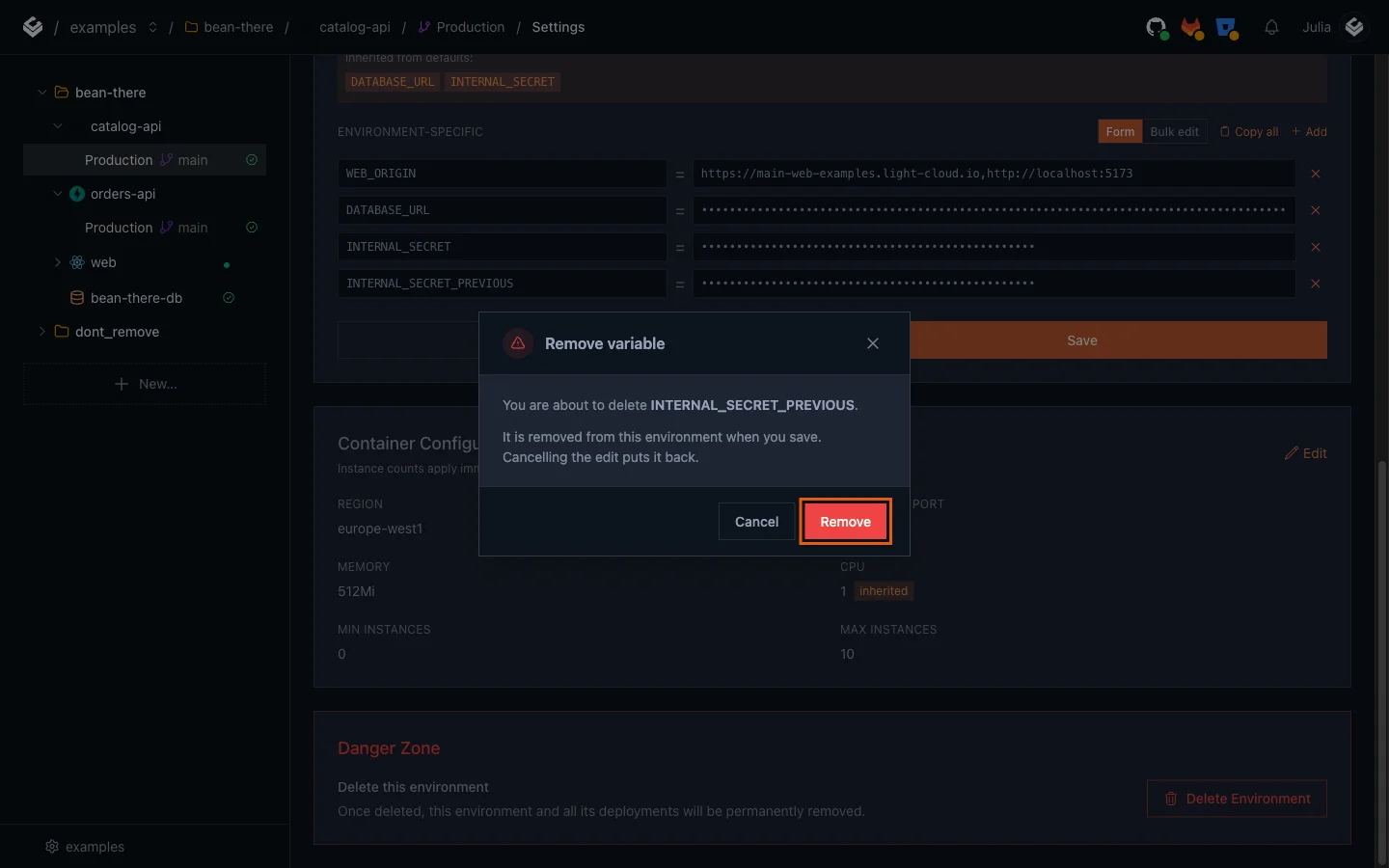
- Confirm with Remove, then click Save.
Once catalog-api has redeployed, the old secret no longer works. Put your old secret in the header (the example shows the one from Part 1). You should see Unauthorized:
$ curl -X POST https://main-catalog-api-yourworkspace.light-cloud.io/internal/products/1/reserve \
  -H "content-type: application/json" \
  -H "x-internal-secret: cf91d1e26971527e2ec7362e9452f5abb4670e767ab1a0af" \
  -d '{"quantity":1}'
{"error":"Unauthorized"}PS> curl.exe -X POST https://main-catalog-api-yourworkspace.light-cloud.io/internal/products/1/reserve `
-H "content-type: application/json" `
-H "x-internal-secret: cf91d1e26971527e2ec7362e9452f5abb4670e767ab1a0af" `
-d '{"quantity":1}'
{"error":"Unauthorized"}The same request with the new secret succeeds (and reserves one item, so run it once). In my run, the old secret stopped working 70 seconds after saving, and no order failed during the whole rotation.
Step 4: Fail fast when catalog-api is down
A call between services can hang: the other service may be starting up, overloaded or misconfigured. Without a limit, the customer waits for as long as the connection does. orders-api now gives catalog-api 5 seconds and then answers with a clear error:
# How long to wait for catalog-api before giving up on an order.
CATALOG_TIMEOUT_SECONDS = float(os.environ.get("CATALOG_TIMEOUT_SECONDS", "5"))

try:
    async with httpx.AsyncClient(timeout=CATALOG_TIMEOUT_SECONDS) as client:
        reply = await client.post(
            f"{CATALOG_API_URL}/internal/products/{order.product_id}/reserve",
            json={"quantity": order.quantity},
            headers={"x-internal-secret": INTERNAL_SECRET, "x-request-id": request_id},
        )
except httpx.HTTPError as error:
    log(request_id, "catalog-api unreachable", error=type(error).__name__)
    raise HTTPException(status_code=503, detail="Catalog service unavailable, please try again")
When catalog-api cannot be reached, an order now returns:
{"detail": "Catalog service unavailable, please try again"}
with status 503, and orders-api's logs show catalog-api unreachable with the error type. To change the limit, add CATALOG_TIMEOUT_SECONDS to orders-api's environment variables. Keep it well below the time a customer is willing to wait for a button click.
Why 5 seconds? catalog-api scales to zero when idle, and its first request after a quiet period includes a cold start. Part 4 measures that cold start, so you can set the timeout from a number instead of a guess.
Troubleshooting
Access-Control-Allow-Origin is missing for localhost
WEB_ORIGIN must list the exact origin: scheme, host and port, and no slash at the end. http://localhost:5173 and http://127.0.0.1:5173 are different origins. Check that the value has no spaces around the comma, save, and wait about a minute for the redeploy.
Orders fail with 502 during the rotation
orders-api sent a secret catalog-api did not accept. Usually the order of the steps was swapped: orders-api got the new secret before catalog-api accepted it. Set INTERNAL_SECRET_PREVIOUS on catalog-api to whatever orders-api currently sends, and orders work again.
"internal call used the previous secret" keeps appearing after step B
Some caller still sends the old secret. Check that orders-api's save finished and that its Production environment shows Deployed, then look for any other service or script that calls /internal routes.
Orders return 503 "Catalog service unavailable, please try again"
orders-api could not reach catalog-api within CATALOG_TIMEOUT_SECONDS. Check CATALOG_API_URL on orders-api and that catalog-api's Production environment is Deployed. If catalog-api scaled to zero, the first order after a quiet period can take longer; Part 4 covers that.
FAQ
Can one API allow more than one CORS origin?
Yes. List every allowed origin in the API's CORS setting. In this tutorial WEB_ORIGIN holds a comma-separated list, for example the production site and http://localhost:5173.
How do I change a shared secret between services without downtime?
Let the receiving service accept both the old and the new secret, switch the calling service to the new one, then remove the old one. At no point does a caller hold a secret the receiver refuses.
Do I need to redeploy after changing an environment variable on Light Cloud?
No. Saving environment variables redeploys the service on its own. In my run the new values were live in 50 to 70 seconds.
Why does only one service redeploy when I push to a monorepo?
Each Light Cloud app has a Root directory. A push only redeploys the apps whose folder the push changed.
What should a service do when another service does not answer?
Stop waiting after a short timeout and return a clear error, such as 503 Service Unavailable, instead of leaving the customer's request hanging.
Next steps
- Part 1, if you skipped it: deploy a frontend, two APIs and a database.
- Part 3: autoscaling explained with a load test.
- Part 4: scale to zero or always on, measured with real cold starts.